Import from Cumulus
Import historical observations from Cumulus or CumulusMX monthly log files.
Import from Cumulus
Use this guide to move historical observations from Cumulus or CumulusMX into Meteobreeze. Upload a single ZIP archive containing your monthly log files; Meteobreeze reads the supported logs, converts their values into canonical units, and imports the range you choose.
Recommended: set up CumulusMX live sync first. It keeps new readings arriving while the historical import fills in older records.
What you need
- Your Cumulus monthly log files, normally named like
Jan24log.txtor202401log.txt - One ZIP archive containing those files, up to 150 MB compressed
- The units configured in Cumulus when the logs were written
- The timezone used by older, date-and-time-based logs
Put the monthly log files directly in one ZIP. They can sit at the top level:
cumulus-history.zip
├── Jan24log.txt
├── Feb24log.txt
└── 202401log.txt
or in folders within that ZIP:
cumulus-history.zip
└── Cumulus archive/
    ├── 2023/Jan23log.txt
    └── 2024/202401log.txt
Meteobreeze finds supported monthly logs wherever they are in the ZIP, so you can preserve the folder structure you already use.
The archive can contain up to 600 monthly log files and may expand to up to 512 MB. Password-protected ZIP files are not supported.
Step-by-step
Upload the archive
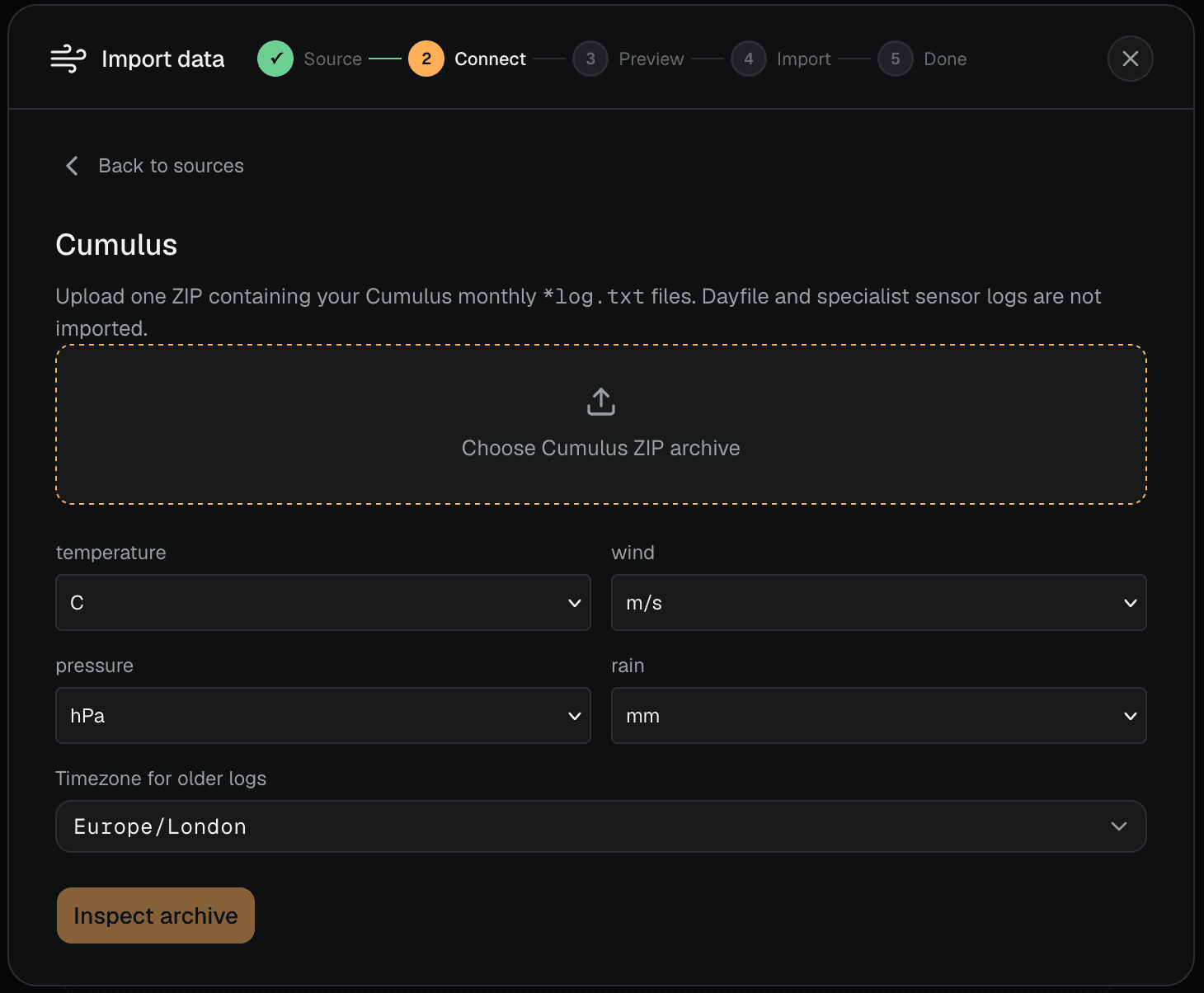
- Open the historical import flow and choose
Cumulus. - Create a ZIP containing the monthly
*log.txtfiles you want to import, then select it. - Choose the units that match the Cumulus settings used for those logs: temperature, wind, pressure, and rain.
- Select the timezone used by older logs. It starts with your Meteobreeze station timezone when one is set.
Inspect and import
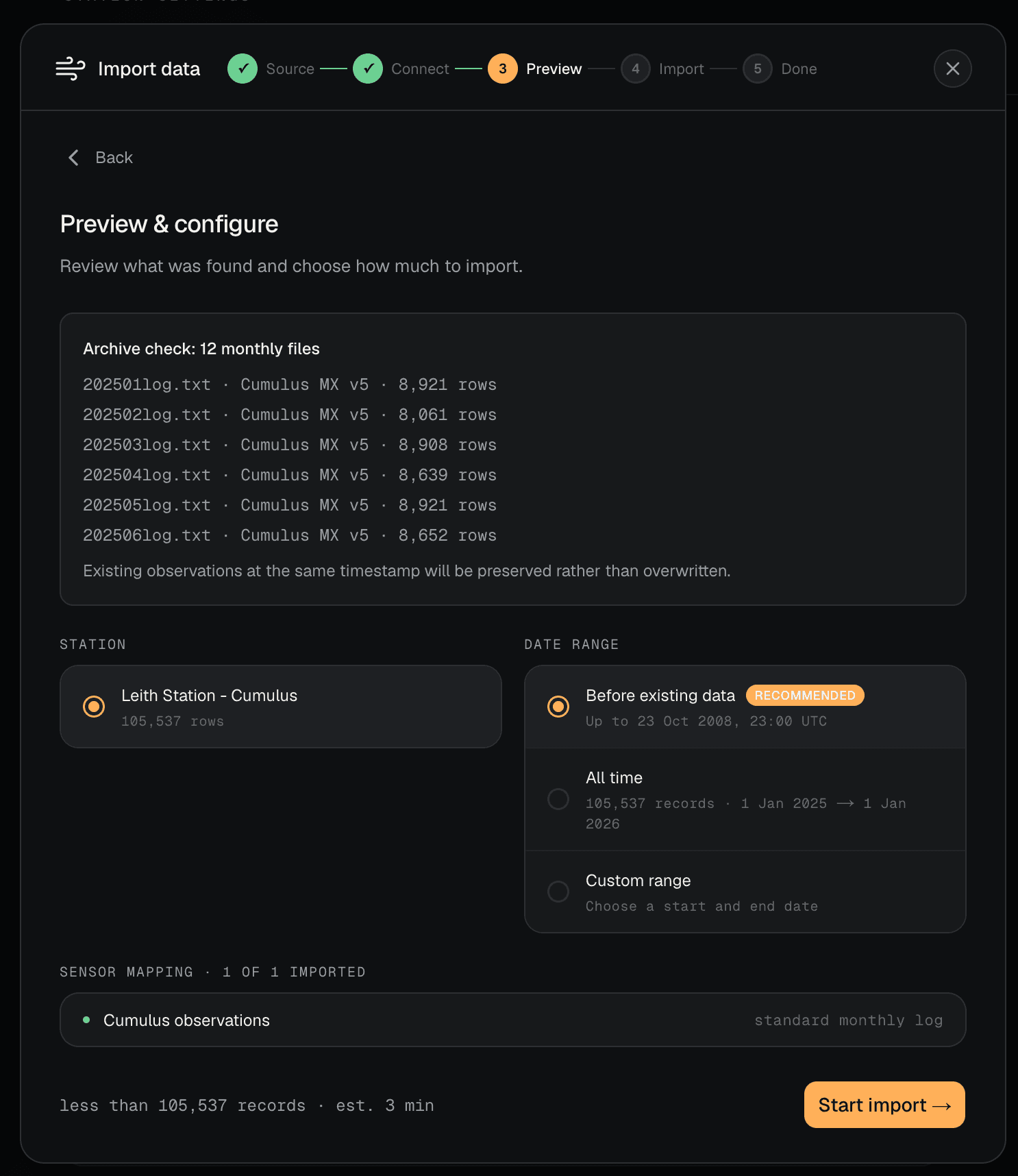
- Select
Inspect archive. - Review the detected files, date range, valid row count, and any skipped rows.
- Choose the Meteobreeze station and either
All timeor a custom date range. - Start the import.
The import runs in the background, so you can close the window and return to Import history to check progress.
Units and timestamps
Choose the settings Cumulus used when it wrote the logs, rather than the units you would like to see in Meteobreeze. Meteobreeze converts supported measurements as it imports them.
CumulusMX v5 monthly logs include Unix timestamps, so their times are read as absolute times. Older Cumulus and CumulusMX logs use local date-and-time values; the timezone selection tells Meteobreeze how to interpret those timestamps. Selecting the wrong timezone can shift observations by hours, especially around daylight-saving changes.
What gets imported
Where the monthly log contains them, Meteobreeze imports:
- Temperature, dew point, and humidity
- Average wind speed, maximum gust, and wind direction
- Pressure
- Rain rate and Cumulus rainfall today (which resets at the station's daily rollover)
- Solar radiation and UV index
Blank measurements are kept empty. Rows without a valid timestamp are skipped and appear in the archive inspection and import totals.
Choosing a range
The preview shows the oldest and newest valid observation found in the archive. Choose All time to import the complete archive, or use Custom range to limit it.
For a date-only custom end date, Meteobreeze includes the whole final day. Existing observations at the same timestamps are preserved, so importing overlapping history does not overwrite data already in Meteobreeze.
Common issues
- No valid observations found: check that the ZIP contains standard monthly
*log.txtfiles, not onlydayfile.txtor sensor-specific logs. - No monthly logs found: make sure the log filenames end in
log.txtand use a supported monthly name such asJan24log.txtor202401log.txt. - Values look incorrect: recheck the four selected Cumulus unit settings before importing.
- Times are shifted: choose the timezone used by the older logs, not necessarily the timezone where you are now.
- Archive is rejected: use a ZIP no larger than 150 MB, without encryption.